Popular
Your Mac Is Hot, Slow, And Begging You To Close Something. Try CleanMyMac Free For 7 Days

07 Aug

This article includes affiliate links. We may earn a commission if you make a purchase, with no extra cost to you.
You are hot. Your iced coffee is melting. Your Mac suddenly sounds like it is preparing for takeoff. Apparently, none of us are handling the heatwave particularly well.
High temperatures can make a Mac work harder to manage its internal heat. Fans get louder, apps take longer to respond, scrolling starts to stutter, and the case may feel warmer than usual.
Shade and airflow are the first places to start, but it is also worth checking what is happening on the software side. CleanMyMac by MacPaw helps you see which apps and background processes are using the most resources, then reduce unnecessary software-side load instead of guessing what is making your Mac work so hard.
Before blaming your Wi-Fi or panic-closing every tab, here are the warning signs to look for and the practical steps that can help.
TL;DR
Is The Heatwave Slowing Down Your Mac?
- Loud fans, sluggish apps, and a hot Mac can all be signs it is struggling with the heat.
- Move it out of direct sunlight and keep the vents clear before trying anything else.
- CleanMyMac helps you see what is using your Mac’s CPU and reduce unnecessary software-side load.
Signs Your Mac Is Struggling With The Heat
A warm laptop is not automatically a problem. Macs naturally heat up while running demanding apps, editing video, gaming, or juggling too many browser tabs. It may need some attention when:
- The case feels unusually hot
- Fans run loudly and constantly
- Scrolling or window movement becomes jerky
- Apps take longer to switch or respond
- Simple tasks suddenly feel slower
Hot weather may be part of the problem, but where and how you are using your Mac matters too.
Cool The Hardware First
Start with the physical setup. Move your Mac away from direct sunlight and into a cooler or air-conditioned room. Place it on a hard, stable surface instead of a bed, sofa, blanket, or your lap, where airflow can become restricted.
Keep the vents clear and leave space around the whole case, including the underside. When using an external display, open the MacBook lid fully rather than leaving it closed.
A nearby room fan may also improve airflow. You can disconnect the charger when the battery has enough power, since charging can add extra heat. If the Mac remains extremely hot, save your work, shut it down, and give it a chance to cool.
7-Day Free Trial
See What Your Mac Is Working So Hard On
Check CPU activity, temperature, memory pressure, and the apps using the most processing power with CleanMyMac by MacPaw.
Try CleanMyMac Free For 7 DaysNow Find Out What It Is Working So Hard On
Once you have dealt with the room temperature and airflow, it is worth checking the software side. Background apps, startup programs, memory pressure, malware, and processor-heavy tasks can all leave your Mac juggling more than it needs to.
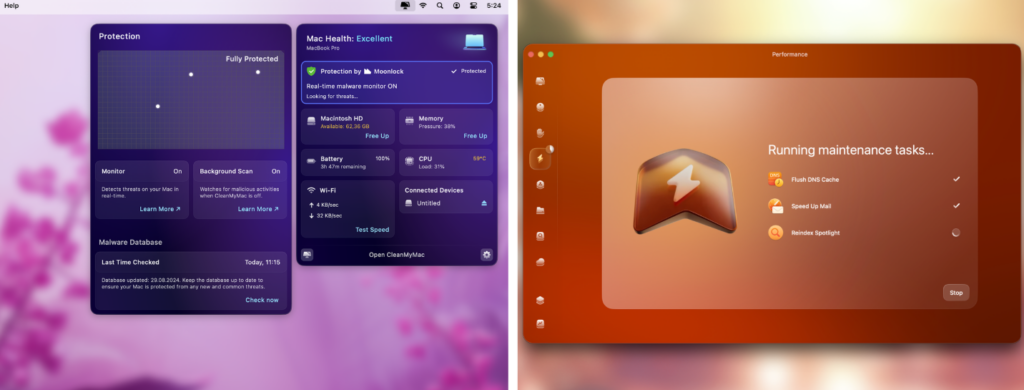
CleanMyMac by MacPaw makes that activity easier to see. Its Menu app shows real-time CPU usage, CPU temperature, memory pressure, battery temperature, and the apps using the most processor power.
Instead of guessing which app is causing the problem, you can see the top consumers directly from the menu bar.
Give Your Mac Less To Juggle
Smart Care is the easiest place to start. It scans for unnecessary files, background clutter, malware, app updates, and maintenance recommendations.
The Performance feature provides more control over login items, background apps, memory use, and routine maintenance. Protection, powered by the Moonlock engine, also checks for malware that may be quietly using processor power.
CleanMyMac does not physically cool your Mac or control its fans. It helps you understand what is driving resource use and reduce unnecessary software-side load alongside the physical cooling steps above.
7-Day Free Trial
Your Mac Deserves A Summer Checkup
Start with shade, airflow, and a cooler workspace. Then use CleanMyMac to see what has been keeping your Mac so busy.
Try CleanMyMac Free For 7 Days